

This page covers step-by-step instructions on how you can view, change, or cancel your Brighterly subscription, update your payment method, and check payment history without the need to contact support.
Follow These Steps
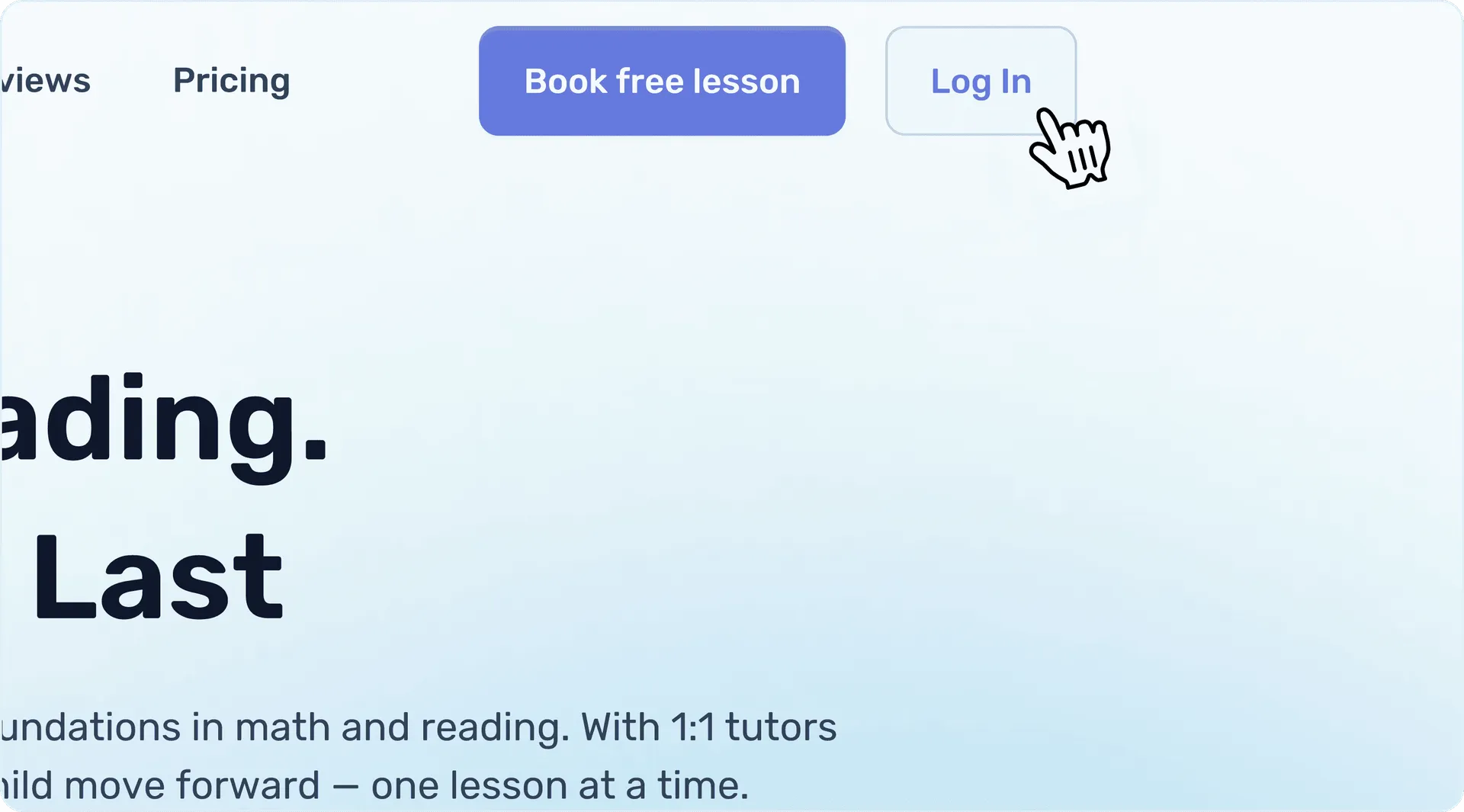
- Open your web browser and go to our main page — https://brighterly.com/. Click the Log In button in the top right corner of the page.
- Enter your Brighterly login information and receive an access code. Enter the access code and complete the login process.
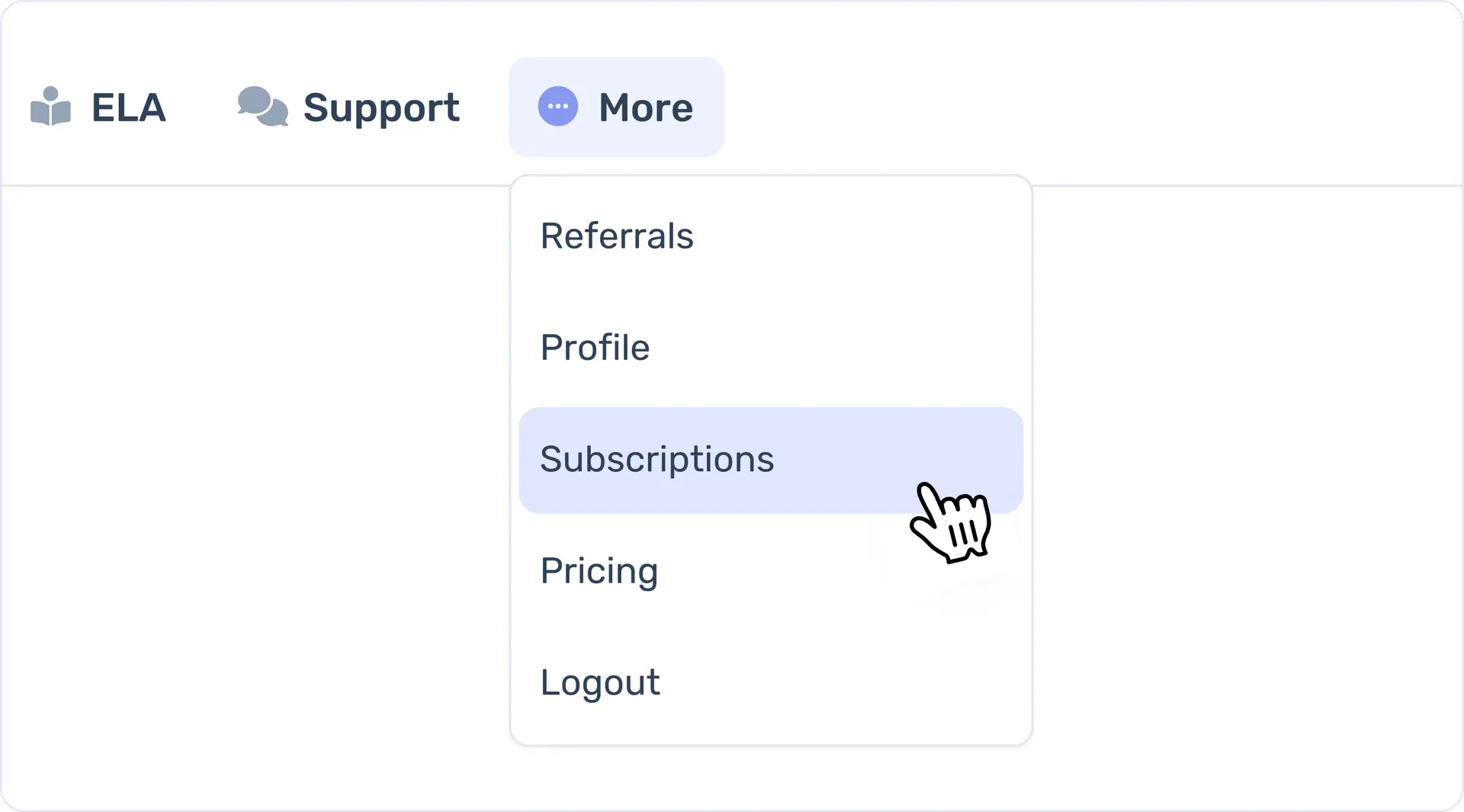
- Once you are logged in, you’ll appear on your account page. In the top navigation panel of your account page, click the More button to expand a drop-down menu.
- In the drop-down menu, select Subscriptions from the available options.
You’re now on the Subscription Management page, where all your plan and billing information is organized into three sections.
A. My Subscription: This section gives you a complete overview of your current Brighterly subscription plan. Here you can check your subscription status (active, paused, or canceled), the subject area or discipline being covered, the number of lessons you have scheduled per week and per month, the current price of your plan, and the date of your next payment.
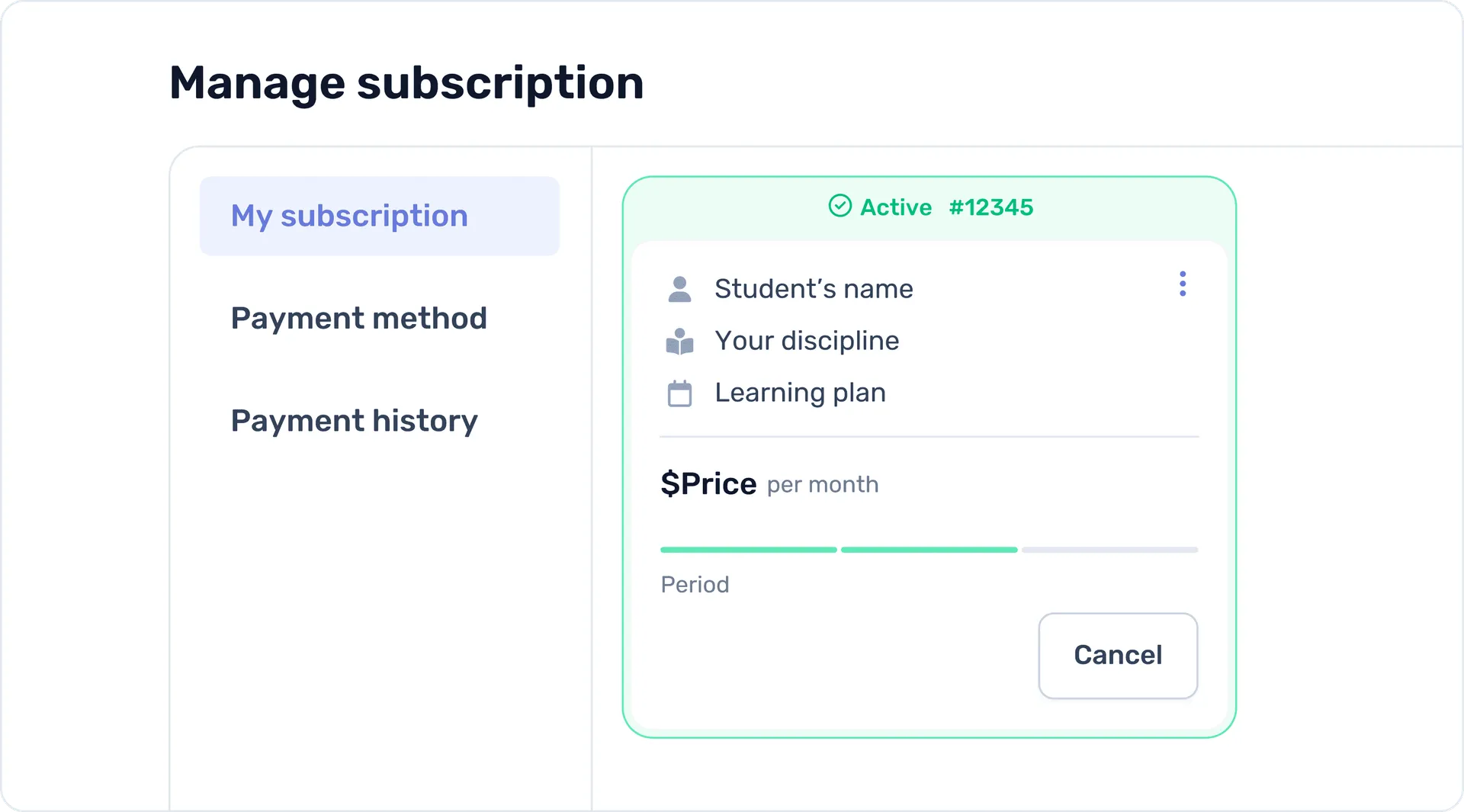
Beyond simply viewing your plan details, this section is also where you can take action — pause your subscription temporarily without losing your plan details or cancel it completely.
B. Payment Method: This section automatically shows you the card you have currently saved to your account to use for payments. If you want to add another Brighterly payment method, you can do it in this section.
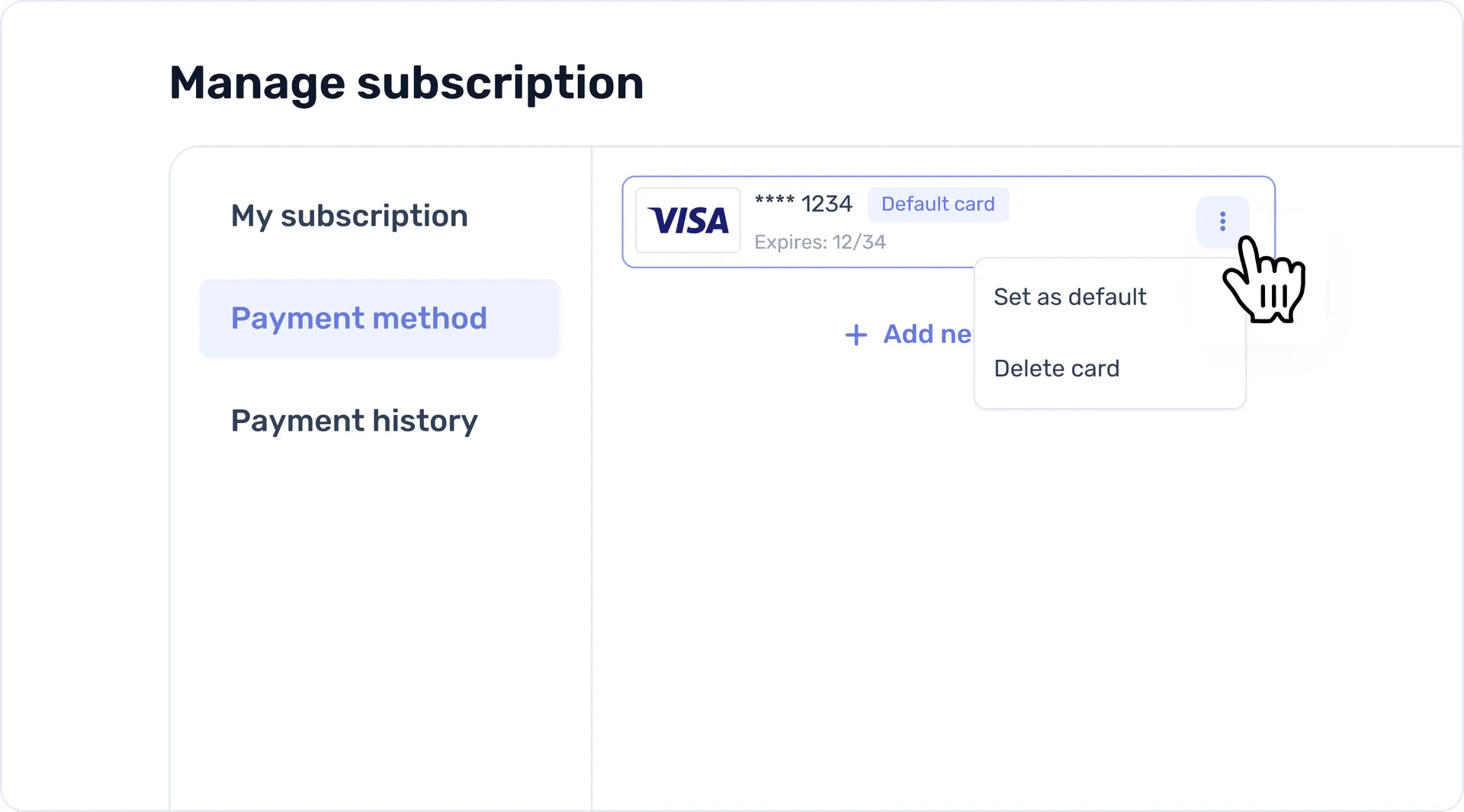
You can also delete a current card from the account if it expired, was lost, or you don’t want to use it for Brighterly payments. If you want to keep more than one card in the account, you can select which one is set as the default for future billings.
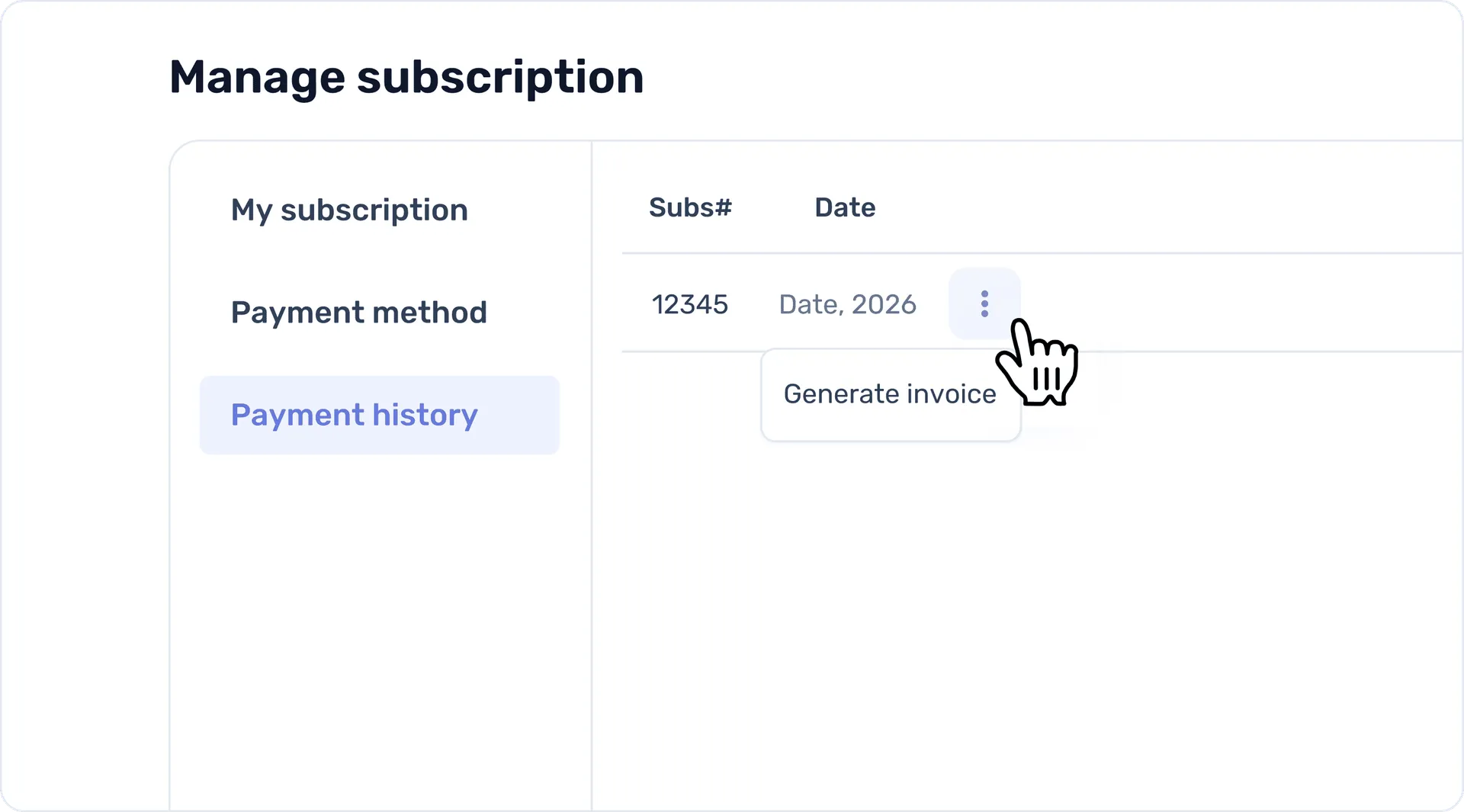
C. Payment History: This section shows a complete record of all your past transactions associated with this account. For each payment, you will see the subscription type, the student's name, the amount charged, and the exact payment date.
To access additional options for any individual transaction, click the ellipsis menu (the three-dot icon) next to the transaction date. You’ll be able to generate, download, or view an invoice for your transactions or take further action on a specific transaction, if needed.